You connect LinkedIn from Outreach > Investor campaign: click Connect LinkedIn, then pick one of two methods. Method 1, connect with cookies, takes about 30 seconds and needs no password. Method 2, credentials login, uses your LinkedIn email and password. Either way, messages and replies send from your own LinkedIn account, so investors see you, and you can disconnect at any time. Your 30-day trial starts when outreach first goes live. Everything is free during the trial, and the wallet deposit is waived.
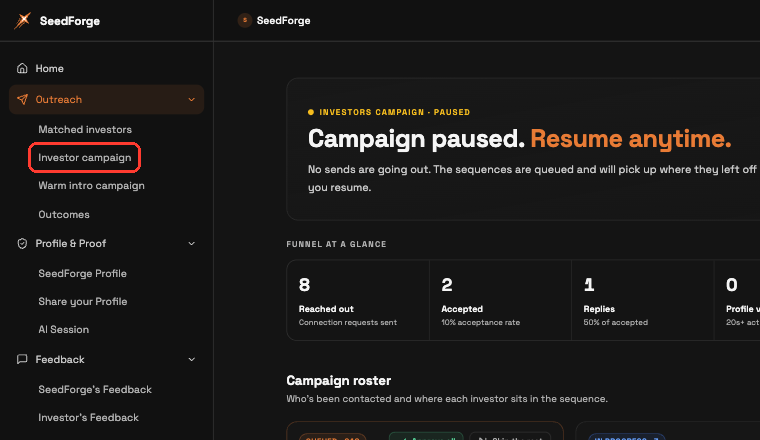
Start the connection
Open Investor campaign. Expand Outreach, then click Investor campaign. Setup has three steps: complete your profile, review your messages, and connect LinkedIn.
Click Connect LinkedIn. SeedForge opens outreach.seedforge.com, the platform that does the sending, in a new tab. The first time, you create a sign-in there. That sign-in is separate from your LinkedIn login, and it takes about a minute.
Click Connect account. On the LinkedIn Accounts page, click Connect account at the top right.
Choose your method. Pick Connect with cookies or Credentials login. Both keep the account sending from your own LinkedIn session.
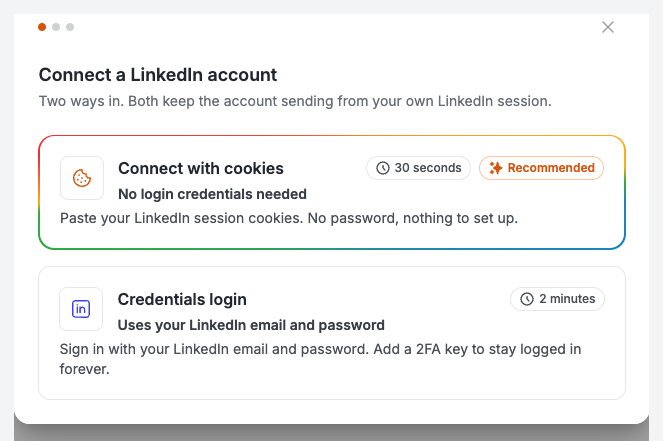
Which method to choose
Method 1, cookies, is the one we recommend. It is faster, SeedForge never sees your password, and LinkedIn does not send you a security code because you are not signing in again. The trade-off is that the connection ends when you sign out of LinkedIn on the computer you copied the cookies from, and you reconnect by copying them again.
Method 2, credentials, takes longer and asks for your LinkedIn email and password. It survives a sign-out, and with your 2FA secret key added it stays connected without you doing anything. Use it if you would rather set it once and forget it.
Method 1: Connect with cookies (recommended)
You copy the cookies that keep you signed in to LinkedIn, and paste them into SeedForge. No password is typed anywhere, and nothing is installed on your LinkedIn account.
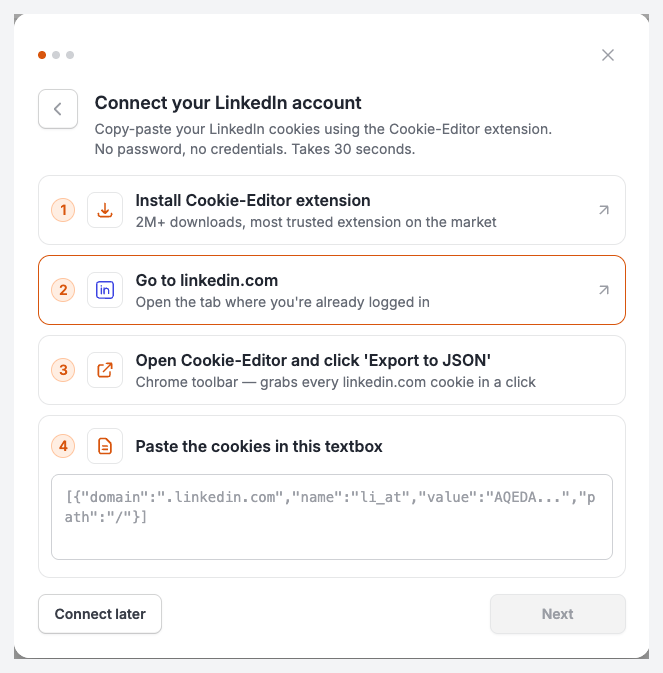
Install the Cookie-Editor extension. Click step 1 in the dialog to open Cookie-Editor on the Chrome Web Store, then click Add to Chrome. It is a free, open-source extension with about 2 million users, published by cookie-editor.com. Site access is optional and granted one site at a time, so you can give it linkedin.com and nothing else.
Open linkedin.com in a tab where you are already signed in. Do not sign out and back in, and do not use a private window. The cookies you are about to copy belong to that signed-in session.
Open Cookie-Editor and export. Click the Cookie-Editor icon in the Chrome toolbar while linkedin.com is the tab you are on. The first time, it asks for permission to read cookies for the site, so click This site. You now see the list of LinkedIn cookies. Click the export icon at the bottom right of the panel and choose JSON. It confirms with "Cookies exported to clipboard as JSON", which means the text is now on your clipboard.
Paste them into SeedForge. Go back to the SeedForge tab, click into the box under step 4, and paste. You should see text that starts with [{"domain":".linkedin.com". Click Next.
Confirm it is your account. SeedForge reads the session out of the cookies and shows the LinkedIn profile it found, with the name and headline, and asks "Connect [your name] to SeedForge?". Nothing is saved until you confirm. Click Yes, that's me, or No, that's not me if it found the wrong account.
Note: If you are not ready to finish, click Connect later. Nothing is saved and you can come back to the same screen.
What the cookies actually are
A cookie is a short piece of text a website stores in your browser. When you sign in to LinkedIn, LinkedIn stores one called li_at. That cookie is what keeps you signed in: it is the reason you can close the tab, come back tomorrow, and still be logged in without typing anything.
The cookie carries the signed-in session itself. Your password is nowhere inside it, and it cannot be turned back into your password. Handing the cookie to SeedForge gives SeedForge the same access your email and password would give, with no password typed, stored, or transmitted anywhere.
Cookie-Editor's Export > JSON copies every cookie for the site you are on. For linkedin.com that is the session cookie plus ordinary ones like your language and interface preferences. SeedForge uses the session cookie. The rest is inert.
What that access does and does not allow:
SeedForge can act on LinkedIn as you, which is the point: profile views, one post like, connection requests, and the messages you approved.
SeedForge cannot see or change your password, cannot change your email, and cannot lock you out. LinkedIn asks for the password itself before any of that.
Anyone holding that text can act as you on LinkedIn while the session lasts, exactly as SeedForge does. Paste it into SeedForge and nowhere else. Do not send the exported text in a chat, a document, or an email.
You can end the access whenever you want. Changing your LinkedIn password kills every session. So does Settings & Privacy > Sign in & security > Where you're signed in > Sign out of all these sessions. Either one invalidates the cookie, and the SeedForge connection stops with it.
The same thing happens by accident if you sign out of LinkedIn on the computer you exported from. Signing back in creates a fresh cookie and the old one stops working, so the connection drops. Closing the tab or quitting the browser is fine and changes nothing. Cookies also expire on their own after a while, so expect to repeat the export every few months.
Method 2: Credentials login
This method signs in to LinkedIn with your email and password. The screen is headed Input your credentials and says "Fully encrypted, never shared".
Enter your LinkedIn email and password. Use the account you want SeedForge to send from. Your credentials are encrypted, no one at SeedForge can see them, and you can disconnect and revoke access anytime.
Turn on "Keep me connected forever". Click the toggle. A 2FA secret key field appears. Add the key so SeedForge can answer LinkedIn's security checks on its own, which is what keeps the account connected. Without it, LinkedIn signs the account out eventually. It is the 16 to 32 character key LinkedIn shows when you turn on two-step verification, not the 6-digit code, and the steps to find it are at the bottom of this article.
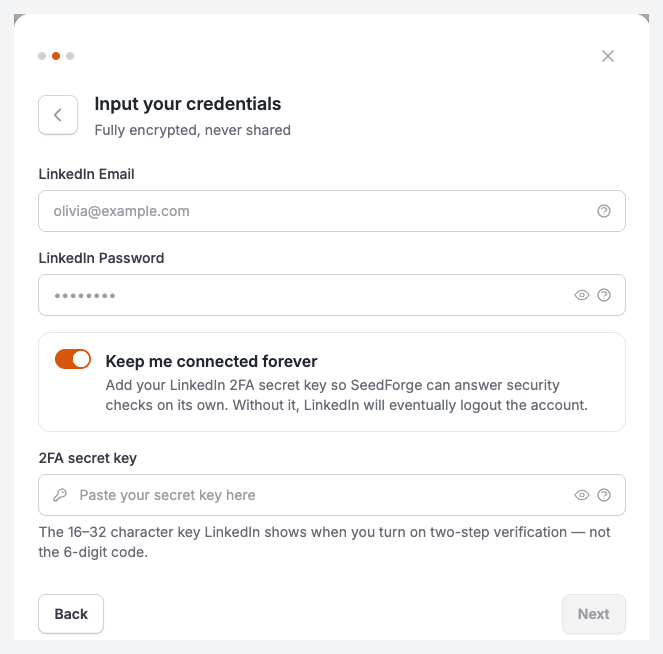
Click Next. LinkedIn may ask for a one-time PIN during setup. Enter it when prompted.
Finish the connection
The last screen is the same whichever method you used.
Set your preferences. Under Inbox privacy configuration, choose Keep it private, which imports only the conversations from your SeedForge campaigns and leaves your personal DMs alone. Sync full inbox brings in every LinkedIn conversation instead. Then under Region (Proxy location), select the country you are actually using SeedForge from. SeedForge runs your account on its own dedicated connection in that country and paces every action to look like a real person, which is why the country is asked for at all. Leave SeedForge proxy selected unless you have been told otherwise.
Click Connect account. The account finishes connecting in the background, which can take up to 20 minutes. When it is done, it shows in your LinkedIn Accounts list and your campaign can go live.
Tip: LinkedIn Premium is recommended. It improves acceptance rates and adds a personalized note to each connection request.
Note: Use only SeedForge to automate this LinkedIn account. Running a second automation tool at the same time risks LinkedIn restrictions.
If it does not connect
The paste is rejected. The box needs the whole JSON export, starting with a square bracket. If you copied a single cookie value instead, go back to Cookie-Editor, click the export icon, choose JSON, and paste again.
Cookie-Editor shows no cookies. It needs permission for the site. Click Request permission for this site in the extension, then export again. Also check you are on a linkedin.com tab and signed in.
The confirmation screen shows the wrong person. This screen only appears on Method 1. You exported from a browser signed in to a different LinkedIn account. Click No, that's not me, open linkedin.com in the browser with the right account, and export again.
LinkedIn keeps asking for a security code. This only happens on Method 2, because that method signs in again. Two fixes: add your 2FA secret key so SeedForge can answer the check itself, or switch to Method 1, which never triggers a code.
The row says "Wrong credentials". The sign-in did not go through, usually a typo in the email or password, or a 2FA secret key that was copied with a space in it. Click Re-connect on that row and enter them again, or switch to Method 1 and connect with cookies instead.
The account connected and then dropped. On Method 1 this is normal after you sign out of LinkedIn and sign back in. Export the cookies again and reconnect. On Method 2 it usually means a password change or two-step verification was turned on since you connected.
Quick answers
Do I have to give SeedForge my LinkedIn password?
No. Method 1 needs no password at all. If you choose Method 2 instead, you do enter your LinkedIn email and password, they are encrypted, no one at SeedForge can see them, and you can disconnect and revoke access anytime.
Is pasting my LinkedIn cookies safe?
It gives SeedForge the signed-in session, which is what lets it send as you. It does not reveal your password and cannot be used to change it or lock you out. You end it any time by changing your password, or from Settings & Privacy > Sign in & security > Where you're signed in > Sign out of all these sessions. Paste the exported text into SeedForge only, never anywhere else.
Does SeedForge read the rest of my LinkedIn inbox?
Only if you ask it to. On the preferences screen, Keep it private imports the conversations from your SeedForge campaigns and nothing else. That is the setting we recommend.
How long does connecting my LinkedIn take?
Copying and pasting the cookies takes about 30 seconds. Method 2 takes about 2 minutes. After that the account finishes connecting in the background, which can take up to 20 minutes.
How long does the cookie connection last?
Until you sign out of LinkedIn on the computer you exported from, until you change your password, or until the cookie expires on its own after a few months. Closing the tab or the browser does not affect it. When it drops, export the cookies again and reconnect.
Can I disconnect my LinkedIn from SeedForge later?
Yes. You can disconnect your LinkedIn from SeedForge at any time, which breaks the connection.
Where to find your 2FA secret key
Your 2FA secret key is the setup key from your authenticator app, not the 6-digit code the app shows. The code changes every 30 seconds; the secret key stays the same, which is what lets SeedForge sign back in for you and keep your account connected.
To get it, open LinkedIn and go to Settings & Privacy, then Sign in & security, then Two-step verification. Set up verification using an authenticator app. LinkedIn shows a QR code with a setup key (also called a secret key) next to it. Copy that key and paste it into the 2FA secret key field in SeedForge. If two-step verification is already on, turn it off and set it up again with an authenticator app to reveal the key.
You only need this on Method 2. The cookie method does not use it.